
How to install Adobe Lightroom Desktop presets.
- Omen Media

- Feb 2, 2022
- 1 min read
Updated: Feb 16, 2022
Click here for the Lightroom mobile preset installation.

This is a tutorial for installing Adobe Lightroom Desktop presets. If you haven't got any presets, download a few of ours for free here.
1. Open Lightroom
2. Go to the Windows tab and make sure you are on the "Develop" module

3. On the bottom left corner - select the "Import" button

4. Navigate to the folder where your DNG (preset) file is, select the DNG file and "Import" (bottom right corner)

5. NB! Make sure you are on the "Develop" module

6. Under "Presets", click the "+" and "Create Preset"

7. Name the preset, select the group you would like to store it in, and "Create"
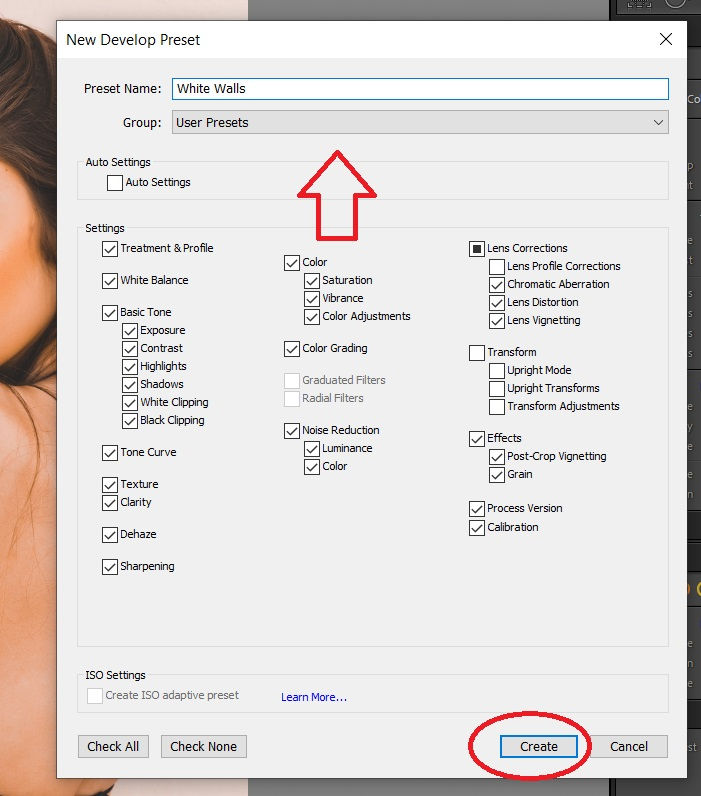
You will find your preset in the folder you selected.


Comments